Your front desk, in every guest’s phone.
Guests check in before they arrive, ask for things from the room and pay their bill from their own phone. Nothing to download. Your team gets every request at once, and you see all of it.
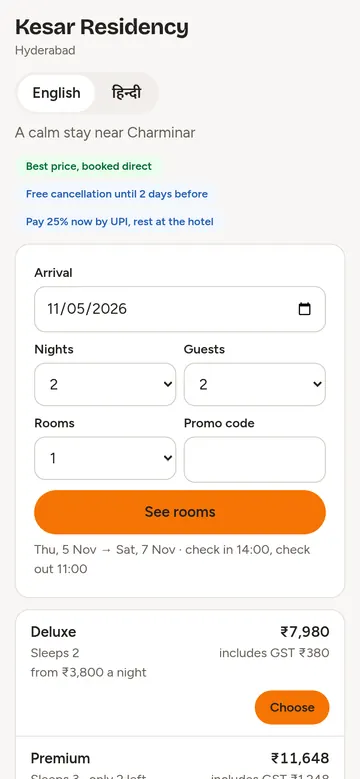
The guest books with you and checks in before the trip
Your own booking page shows your rooms and prices and takes the booking, with no commission to a booking site. Before the day, the guest gets a check in link: they fill in their details, the time they will arrive and if they need help with bags.
- Your booking page, with your rooms, prices and offers
- A check in link the guest opens on their phone
- Arrival time and requests reach your desk in advance
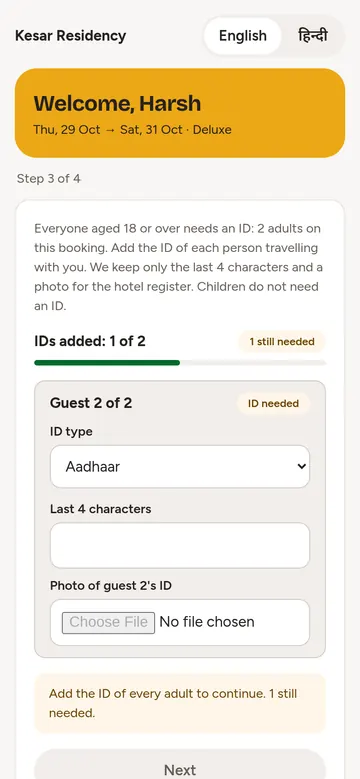
An ID for every adult, a signature, and the room is ready
The guest picks the ID type, types the last 4 characters and takes a photo. Then they add the ID of every other adult on the booking, one by one, and sign the house rules. At the desk your team only checks the original and hands over the key.
- An ID photo for each adult, with a clear count of what is still missing
- Staff see only the last 4 characters; the photo stays private to your hotel
- A signature on the phone, so there is no paper form to fill
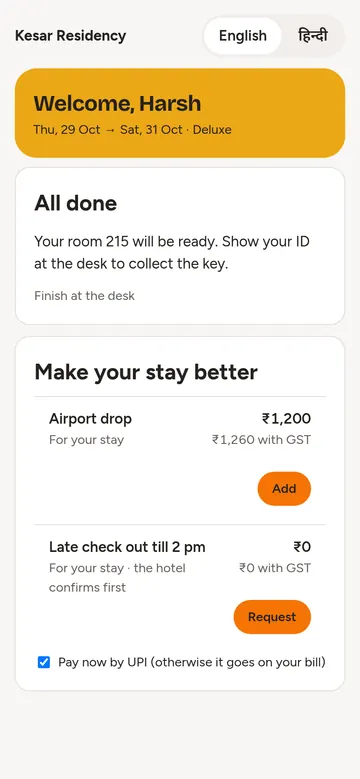
One QR code on the wall opens the guest’s own page
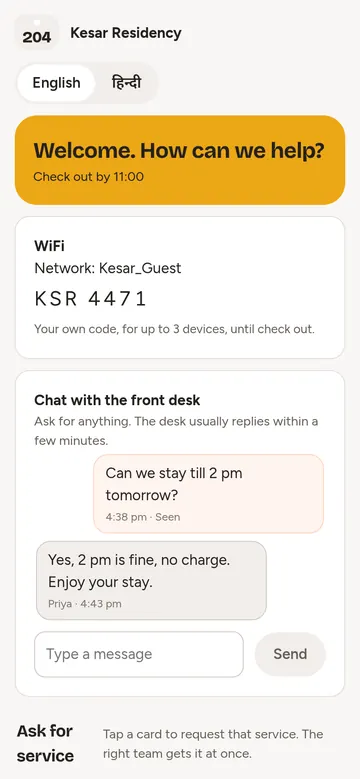
The page greets the guest by room, shows the WiFi name and code, and has a chat with your front desk. Guests message instead of calling, and your desk answers from the same screen it already uses.
- WiFi name and code, with no card to print
- Chat with the front desk
- Check out time, always in view
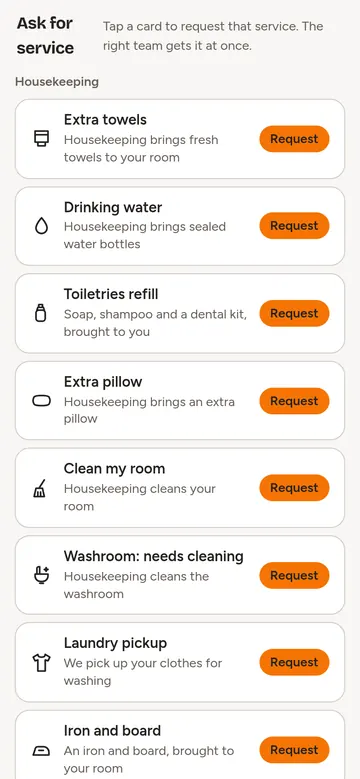
Ask for anything with one tap. The right person gets it.
Towels, water, a clean room, laundry, an iron, or something that is not working. Each card goes to the team that does it, and the guest sees when it is on its way. Extras like an airport drop or a late check out can be added with one tap too.
- Requests go straight to housekeeping or maintenance
- The guest sees each request move from new to done
- Extras you choose to offer, with the price shown first
The guest sees the bill and pays before they leave the room
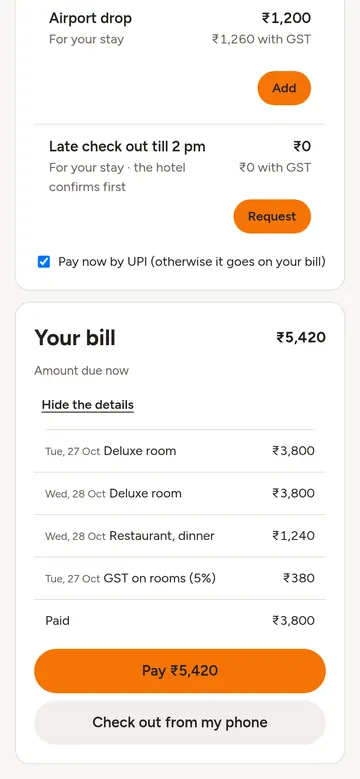
Every line of the bill is on the guest’s phone: rooms, food and GST, and what is already paid. They pay the balance online and ask to check out. Your desk sees the request and the payment at once, so there is no queue at the counter.
- The full bill, line by line
- Pay the balance by UPI, straight to your hotel’s UPI ID, or by card if you connect a card account
- Check out from the phone, and the desk is told
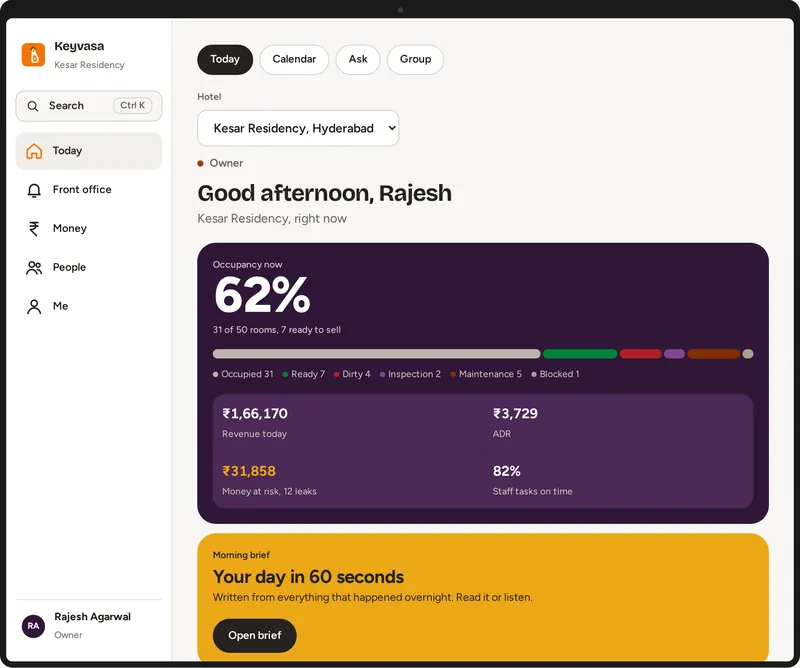
Every guest request, check in and payment, on your phone
Keyvasa Concierge is not a separate app for your team. Everything the guest does lands in Keyvasa, next to the room, the booking and the bill.
Who asked, who did it, how long it took
Each request shows the room, the person it went to and when it was done.
Check ins with every ID in place
See which arriving guests have checked in, and which adults still need an ID.
Payments on the bill, not in a drawer
A balance paid from the guest’s phone goes straight onto the bill.
Chats kept with the stay
What the guest asked and what your desk said stays with the booking.
No app to download. No new hardware.
Guests need no app. Every page opens in their phone’s browser, in English or Hindi.
Opens in any phone browser
Guests scan, and the page opens. Nothing to install, no sign up.
A printed QR sticker per room
Print a QR sticker for each room from Keyvasa, with your logo, and put it on the wall or the desk.
English and Hindi
Guests switch language on the page themselves.
A lobby screen if you want one
On Pro, a tablet in the lobby does self check in and gives out the key card.
Which plan has what
Check in before arrival, the room page with WiFi and requests, and the bill with UPI payment come with every plan. Chat with the desk, your booking page and paid extras come with Plus and above. The lobby screen comes with Pro and above.
Questions about Keyvasa Concierge
Anything else, ask us on the demo call.
Do guests need to download an app?
No. Keyvasa Concierge opens in the phone’s own browser when the guest taps the check in link or scans the QR code in the room. There is nothing to install and no account to create, so it works for guests of every age and on every phone.
Does every guest upload an ID?
Every adult on the booking does. After the main guest adds their own ID, the page asks for the ID of each other adult and shows how many are still missing. Children do not need one. Your staff see only the last 4 characters, and the photo stays private to your hotel.
Does my team still check the guest at the desk?
Yes. Checking in on the phone fills in the details and the ID photos in advance, so at the desk your team only looks at the original ID and hands over the key. Rules on guest ID differ by place, so confirm what your local police station asks for.
How do guest requests reach my staff?
Each request card is linked to a team, such as housekeeping or maintenance. When a guest taps it, the job appears at once on that team’s phones in Keyvasa, and the guest can see it move from new to done. You see every request and how long it took.
Can guests order food from the room?
Not yet. Ordering food from the guest’s page is not built. Today guests can ask for services, chat with the desk and add the extras you offer, and anything your staff charge to the room shows on the guest’s bill.
Which plan includes Keyvasa Concierge?
Every plan includes check in before arrival, the room page with WiFi and one tap requests, and the bill on the phone with UPI payment. Chat with the desk, your own booking page and paid extras need Plus or above, and the lobby screen needs Pro or above.
See Keyvasa Concierge with your own rooms
On a short call we set up a sample room and you try every step on your own phone.
Request a demo
Tell us about your hotel. We will set up a walkthrough with your own room types and show the screens your team would use.
Thank you. Your request is in.
We will get in touch on the phone or WhatsApp number you gave to fix a time. Meanwhile, take the product tour.